

In this article
- The quick answer
- Which hardware fits which workload?
- Can local AI run without a GPU?
- CPU for local AI: what can it really do?
- What does an integrated GPU add to local AI?
- What is an NPU, and when does it help?
- When does local AI need a dedicated GPU?
- Is 8 GB VRAM enough for local AI?
- What is the best GPU for TTS?
- Does voice cloning require GPU inference?
- What hardware does local video AI need?
- Which software uses the CPU, GPU and NPU?
- ONNX on AMD, Intel and NVIDIA
- CPU, iGPU, NPU and dedicated GPU compared
- Which PC for local AI fits your workflow?
- How much RAM and SSD storage does local AI need?
- How VANIV can combine different types of hardware
- What if your own hardware is not powerful enough?
- Frequently asked questions
- Conclusion: start with the hardware you have
- Further technical documentation
Are CPUs enough for running AI workloads without GPUs? Yes — for many smaller or quantized workloads. A modern CPU can handle transcription, translation, smaller local language models, analysis and lightweight text-to-speech. The real limit is usually not whether the model starts, but whether model size, memory bandwidth and waiting time remain practical.
A short text prompt, transcription job or lightweight voice task may run perfectly well on a CPU. Large models, repeated voice generation and long video projects create a very different workload and benefit much more from GPU acceleration.
That distinction matters for VANIV. Local video translation is not a single model call. Transcription, translation, voice generation, timing, audio mixing and export form one connected workflow. Different stages benefit from different hardware, so a flexible combination of CPU, integrated graphics, NPU and dedicated GPU is more useful than the blanket claim that local AI always requires one specific graphics card.
The quick answer
- CPU: Enough for many smaller or quantized AI workloads, including transcription, translation, lightweight TTS and small local language models. Large models and long repeated jobs can be much slower.
- Integrated GPU: Can accelerate supported models, but usually shares system memory and depends heavily on memory bandwidth, drivers and software support.
- NPU: Designed for efficient supported AI workloads on modern AI PCs. It does not automatically replace a powerful GPU.
- Dedicated GPU: Usually the best option for large models, generative TTS, voice cloning, video AI and parallel processing.
You do not need to buy new hardware before trying local AI. A dedicated GPU becomes far more valuable when you process long audio or video projects regularly, generate several voices or need fast iterations.
Practical rule: Start with the hardware you already own. Upgrade only after you can identify the real bottleneck, such as insufficient RAM, insufficient VRAM or waiting times that interrupt your workflow.
Which hardware fits which workload?
| Workload | Sensible starting point | What to expect |
|---|---|---|
| Transcription, translation and small models | modern CPU, 16 GB RAM, fast SSD | good for learning and occasional use |
| TTS and smaller local language models | strong CPU or iGPU, preferably 32 GB RAM | usable, depending on model and runtime |
| Occasional voice cloning | strong CPU or dedicated GPU with roughly 8 GB VRAM | short projects are possible; long runs may take time |
| Regular voice cloning and long TTS output | dedicated GPU with roughly 8–12 GB VRAM, 32 GB RAM | much faster and easier to iterate |
| Multilingual video dubbing | dedicated GPU with roughly 12 GB VRAM or more, 32–64 GB RAM | a practical starting point for long, repeated projects |
| Large models and parallel jobs | powerful GPU with 16 GB VRAM or more, 64 GB RAM | more room for quality, model size and concurrency |
These figures are not universal minimum requirements. Quantization, model architecture, backend, driver support and implementation quality can change the real requirements substantially. Treat the table as a planning guide, not as a guarantee.
Choose by workload, not by the “AI PC” label: CPU-only hardware is a sensible place to start for smaller models and local AI voice generation. A dedicated GPU becomes much more valuable for repeated voice cloning, long video dubbing and multi-stage video translation workflows.
Can local AI run without a GPU?
Yes. Many models provide a CPU execution path or can fall back to the CPU when no supported accelerator is available. This is especially useful for smaller models and workloads where longer processing times are acceptable.
The CPU is the most versatile component in the system. It runs the operating system, application logic, file processing and any model operations that are not assigned to another accelerator. That is why it remains important even in a powerful AI workstation.
What can run on a CPU?
Depending on the model and runtime, a CPU can handle:
- speech-to-text transcription
- subtitles and transcripts
- text translation
- audio analysis and editing
- smaller local language models
- lightweight text-to-speech
- short generated voice samples
- speaker segments and timestamps
- metadata processing
- smaller document and image classifiers
Performance varies with model size, quantization, CPU architecture, memory bandwidth and software optimization. Two applications can run the same type of task at very different speeds on identical hardware.
Technically possible, practically usable or production-ready?
Local AI is easier to evaluate when you separate three different levels:
- Technically possible: The model starts and produces an output.
- Practically usable: The waiting time is acceptable for occasional work.
- Production-ready: Long or repeated projects finish quickly enough for everyday use.
This distinction prevents unrealistic expectations. A CPU may be able to run a model without making that model pleasant to use every day.
CPU for local AI: what can it really do?
The CPU coordinates the entire workflow. It loads models, prepares inputs, controls file access, decodes media and handles operations that do not run on a GPU or NPU.
For CPU-only local inference, memory capacity and memory bandwidth can matter as much as — or more than — raw core count, especially when model weights are streamed through system memory. A capable CPU therefore improves more than CPU-only inference: it can also prevent a fast GPU from waiting for data preparation, media decoding or other application steps.
For a deeper system-level guide, see CPU systems for local AI.
Speech recognition and transcription
Transcription is one of the most accessible local AI tasks without a dedicated GPU. Smaller or optimized models can deliver useful results on current CPUs. This is often sufficient for single recordings, meetings and short videos.
As models become larger, compute requirements usually rise. A GPU becomes more attractive when you process many hours of audio because even a small delay per segment adds up across a long project.
Translation and smaller language models
Small quantized language models can run on a CPU when enough system memory is available. They can be useful for:
- translation
- summarization
- text correction
- subtitle editing
- classification
- structured output from transcripts
Large models require much more memory bandwidth and compute. Core count alone does not determine performance. Memory bandwidth, instruction-set support, quantization and runtime optimization also matter.
Text-to-speech on a CPU
Text-to-speech can work without a dedicated GPU. Small or traditional TTS models often produce speech at an acceptable speed on a CPU.
Newer generative speech models can be far more demanding. Natural prosody, long text, multiple speakers and expressive voice control increase the workload. A CPU may remain technically supported without being the most productive choice.
Getting the most from CPU execution
A stable CPU-based local AI setup benefits from a few basic choices:
- provide enough system memory
- store models and temporary files on a fast SSD
- close unnecessary background applications
- use an appropriate quantized model
- choose a runtime optimized for your platform
- monitor sustained temperatures and power limits
A fast CPU cannot fully replace a dedicated GPU. It does, however, expand the range of local AI tasks that remain practical on existing hardware.
Practical tip: Before buying new hardware, test a smaller or quantized model. This helps you determine whether the problem is truly the computer or simply the model variant you selected.
What does an integrated GPU add to local AI?
An integrated GPU, or iGPU, is built into the processor or the same chip package. It normally does not have a large pool of dedicated video memory. Instead, it uses part of the computer’s system RAM.
That can still be useful for local AI. Neural networks contain many parallel operations, and graphics processors are designed to process large numbers of similar operations at once.
AMD and Intel integrated graphics as accelerators
An iGPU is only useful when the application and runtime can address it. Software with a CPU-only backend will not begin using integrated graphics automatically.
A capable iGPU may be useful for:
- smaller language models
- image analysis
- selected audio models
- supported ONNX models
- local AI on mini PCs
- notebooks without a dedicated GPU
A modern iGPU is not guaranteed to beat every CPU implementation. It is an additional compute resource that can be valuable when the software supports it well.
Memory bandwidth matters
Integrated graphics shares memory with the CPU and operating system. That makes memory configuration more important than it is for a dedicated graphics card with its own VRAM.
Important factors include:
- memory speed
- memory-channel width
- total RAM capacity
- memory pressure from other applications
- suitable system and application settings
On upgradeable systems, a poor memory configuration can significantly limit the iGPU. On many modern notebooks with soldered memory, the available memory architecture is fixed by the device.
Shared memory is not the same as dedicated VRAM
Windows may report a large amount of shared graphics memory. That number does not provide the same bandwidth or independence as dedicated VRAM on a separate GPU.
For local AI, this means:
- more system RAM creates additional headroom
- the CPU, operating system and iGPU compete for the same memory
- large models can make the entire system feel constrained
- 32 GB RAM is generally more flexible than 16 GB for a strong iGPU
- a large shared-memory figure does not turn an iGPU into a high-end dedicated GPU
Important for mini PCs and notebooks: An impressive iGPU name does not guarantee impressive AI performance. Memory bandwidth, drivers, runtime support and sustained power limits all have to work together.
What is an NPU, and when does it help?
An NPU is a specialized accelerator for neural-network workloads. It is increasingly common in modern AI PCs, notebooks and compact systems. Its main advantage is efficient local inference with relatively low power consumption.
An NPU is not designed to run every demanding model at maximum speed. It is most useful for supported workloads that need to remain active or energy efficient.

Typical strengths of an NPU
An NPU may be suitable for:
- noise suppression
- camera effects and background separation
- audio enhancement
- image classification
- optical character recognition
- smaller language and analysis models
- supported local assistants
- always-on AI functions in a notebook
Its main benefit is efficiency. A notebook can run certain local AI features without keeping the CPU or GPU under heavy load.
Where an NPU still has limits
An NPU is not automatically the best platform for:
- large generative language models
- high-quality generative TTS
- demanding voice cloning
- long video-dubbing projects
- image and video generation
- models containing unsupported operations
Generative audio and video workflows often need substantial memory capacity, memory bandwidth and an application specifically designed for that accelerator.
Why an AI PC is not automatically a fast local-AI workstation
The term AI PC usually describes a computer with dedicated AI hardware, often an NPU. It does not mean every local AI application will run faster.
The same device may behave in three different ways:
- the model runs fully on the NPU
- only selected model operations run on the NPU
- the application continues to use the CPU or GPU because no compatible NPU backend exists
The important question is not only how many TOPS the device advertises. It is whether your actual software supports that NPU.
Remember: An AI PC includes specialized AI hardware. It does not guarantee that every local AI application will use it.
When does local AI need a dedicated GPU?
A dedicated GPU has its own parallel compute units and its own video memory. It is therefore the preferred platform for many large and generative AI models.
A dedicated GPU becomes especially valuable when:
- large models must run locally
- long audio or video files are processed
- several speakers are generated
- voice cloning needs fast feedback
- output quality matters more than minimizing model size
- image or video generation is part of the workflow
- several AI stages run at once
- waiting times must remain short
- local AI is used regularly for production work
A GPU is not the entry ticket to local AI, but it is often the largest single upgrade for speed and scalability.
Why VRAM matters
VRAM determines how much of a model and its intermediate data can remain on the GPU. When VRAM is insufficient, the software may need to:
- use a smaller model
- apply stronger quantization
- offload model layers to CPU and system RAM
- transfer data between RAM and GPU more often
- fall back to CPU execution
More VRAM does not automatically mean more speed. Too little VRAM can, however, prevent a model from running fully on the GPU.
For a dedicated guide, see GPUs for local AI.
Is 8 GB VRAM enough for local AI?
Eight gigabytes of VRAM can be enough for many small and medium local AI tasks. Depending on the model, that may include:
- speech recognition
- smaller TTS models
- selected voice-cloning workflows
- quantized language models
- image models with adjusted settings
- short audio and video projects
Eight gigabytes becomes restrictive more quickly when several models must remain loaded, a large language model is used or video dubbing combines multiple demanding AI stages.
When 12 GB or more becomes useful
Additional VRAM creates room for:
- larger models
- less aggressive quantization
- longer projects
- more speakers
- parallel processing
- higher image and video resolutions
- additional quality-control models
For regular voice cloning and video dubbing, roughly 12 GB VRAM is often a more comfortable starting point than 8 GB. Large models and concurrent jobs may benefit from 16 GB or more.
The exact requirement remains model-specific. A well-optimized model can use less memory than a smaller-looking but inefficient implementation.
What is the best GPU for TTS?
There is no single best GPU for every text-to-speech system. TTS covers a wide range of software, from small traditional speech synthesizers to large generative models with voice cloning, style control and expressive delivery.
Lightweight TTS models
For smaller TTS models:
- CPU execution may be sufficient
- an iGPU may help with a supported runtime
- modest VRAM may be enough
- total processing time increases with text length
- short voice clips are relatively light workloads
Occasional text-to-speech therefore does not automatically require a high-end graphics card.
Generative TTS and high-quality voices
The workload becomes more demanding with:
- natural prosody
- long-form narration
- multiple voices
- voice cloning
- style and emotion control
- parallel generation
- low-latency previews
A dedicated GPU becomes much more useful in these cases. It shortens generation times and often allows larger or higher-quality model variants.
The best GPU for TTS is the GPU that matches the specific model, desired quality and frequency of use. For practical context, see the offline AI voice generator and the deeper guide to GPUs for voice cloning.
Does voice cloning require GPU inference?
Voice cloning does not strictly require a GPU. Depending on the model, both reference-voice analysis and speech generation can run on a CPU.
In practice, voice-cloning workflows benefit greatly from GPU acceleration. That is especially true for high-quality models, long text and several speakers.
Voice-cloning inference without a GPU
A CPU can handle inference when:
- the model is small or well quantized
- only short text needs to be generated
- longer waiting times are acceptable
- no speakers are generated in parallel
- the software has a stable CPU backend
That may be sufficient for tests and occasional projects.
When a GPU becomes useful for voice cloning
A dedicated GPU is recommended when:
- many minutes or hours of speech are generated
- the project contains several speakers
- timing and delivery need repeated adjustment
- several voices must be compared
- an entire video is being dubbed
- each new version should be reviewed quickly
If you regularly dub 30-minute videos, the difference becomes obvious. Acceleration shortens not only one generation step, but every repeated correction and quality-control cycle.
What hardware does local video AI need?
Video AI covers very different workloads. A subtitle generator requires much less compute than full video generation or multilingual voice cloning.
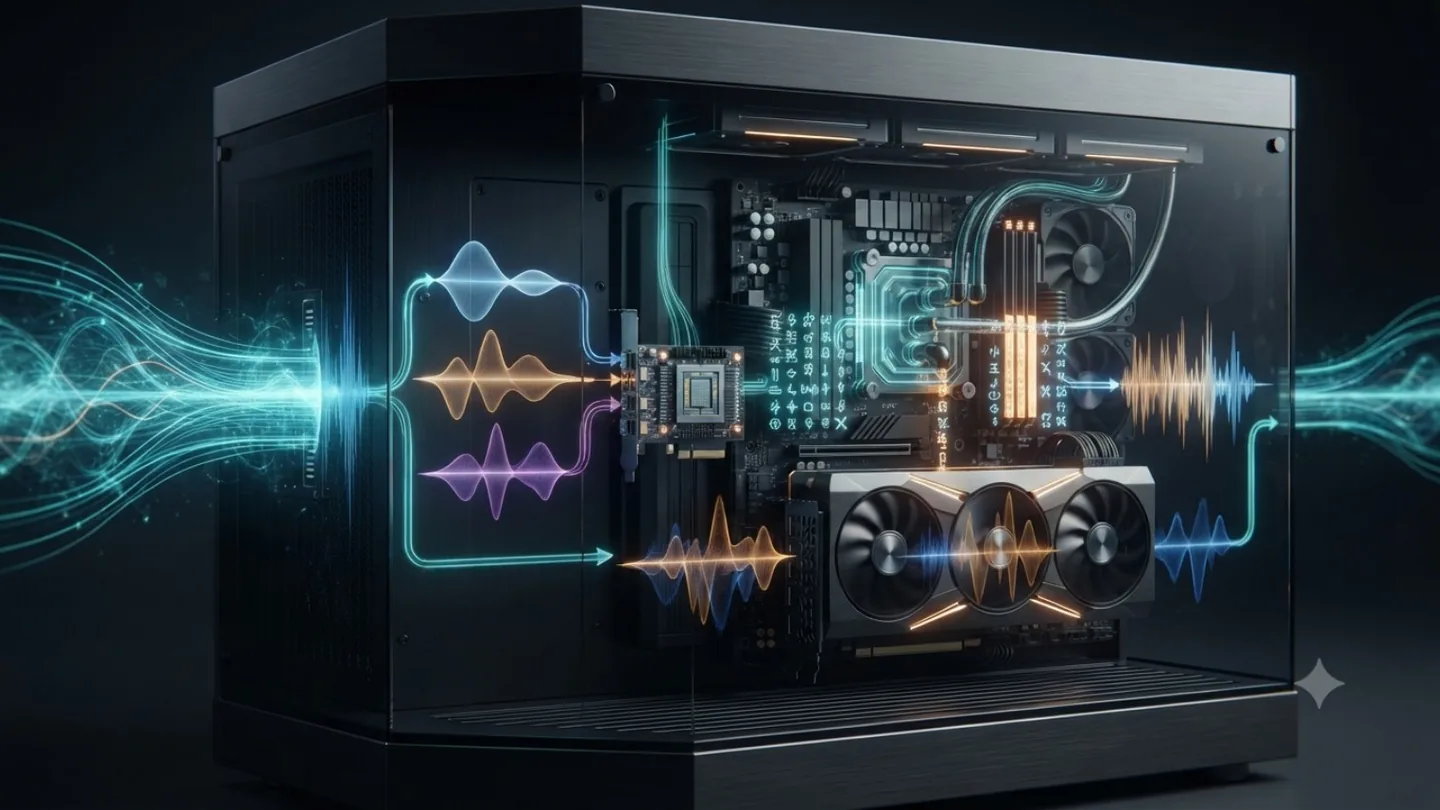
Local video translation is a multi-stage workflow
In VANIV, video dubbing is not one isolated model call. A typical local workflow can include:
- reading the video and extracting audio
- detecting speech and speaker segments
- transcribing the spoken content
- translating the transcript
- assigning or generating target voices
- repairing timing and spoken duration
- mixing the new audio track
- exporting the final video
- automatically checking the result
Each stage has different hardware requirements.
| Processing stage | Hardware that matters most |
|---|---|
| Reading and decoding video | CPU and SSD |
| Speaker detection | CPU or GPU, depending on the model |
| Transcription | CPU, GPU or supported NPU |
| Translation | CPU or GPU, depending on model size |
| Text-to-speech | especially GPU for generative models |
| Voice cloning | especially GPU |
| Timing and duration repair | mainly CPU |
| Audio mixing | mainly CPU |
| Video export | CPU, with optional GPU acceleration |
| Automated quality checks | CPU or GPU, depending on the checking model |
This division explains why a weak GPU does not automatically make the entire workflow impossible. It also explains why a capable GPU can dramatically accelerate the stages that repeat most often in long projects.
Why a GPU matters so much in video dubbing
A slow generation step may be barely noticeable for one sentence. In a long video, the same delay repeats hundreds of times.
A GPU is especially valuable for:
- long projects
- several target languages
- multiple speakers
- repeated timing repairs
- automated quality control
- parallel target versions
- short production deadlines
A CPU can execute many parts of a local video-translation workflow. A dedicated GPU makes the overall process far more productive.
For more detail, see local video translation and local video dubbing.
Which software uses the CPU, GPU and NPU?
Hardware alone does not determine performance. The runtime or backend decides whether a model actually uses the CPU, a GPU, integrated graphics or another accelerator.
The following tools illustrate common approaches. They are examples, not universal recommendations for every workflow.
Ollama: a simple entry point for local language models
Ollama simplifies downloading and running supported language models locally. It is a convenient entry point because models can be managed through a consistent interface and exposed to other local applications.
Depending on the operating system and hardware, Ollama may use supported GPU acceleration. If the model does not fit fully in VRAM, or no supported GPU backend is available, model size, RAM capacity and backend behavior determine how the workload is executed.
Ollama is commonly useful for:
- local chat and text models
- translation and summarization
- testing quantized model variants
- providing a local interface to other applications
- experimenting without configuring every model runner manually
llama.cpp: flexible inference with quantized models
llama.cpp is a lightweight runtime for local language-model inference. Quantized GGUF models reduce memory requirements and can make local execution practical on CPUs or systems with limited VRAM.
Depending on the build and platform, llama.cpp can:
- run fully on the CPU
- offload supported model layers to a GPU
- combine CPU and GPU execution
- use different quantization levels
- expose a local server to other applications
This demonstrates why the question “CPU or GPU?” is not always binary. A model can use the GPU for some layers while the rest remains in system RAM.
whisper.cpp: local transcription without the cloud
whisper.cpp is a local implementation for Whisper-based speech recognition. It can run on a CPU and supports additional acceleration paths on selected platforms.
The main takeaway is straightforward:
- transcription can run locally without a dedicated GPU
- smaller or quantized models reduce resource use
- GPU acceleration can shorten long transcription jobs
- the best configuration depends on the platform and build
whisper.cpp is a practical example of local AI that does not require cloud processing or a flagship GPU.
ONNX Runtime: one model, several execution paths
ONNX Runtime uses Execution Providers to run supported model operations on different platforms. Depending on the installation, that can include CPU, GPU and specialized accelerators.
This approach is useful for applications such as VANIV. A workflow can keep a reliable CPU path while using additional acceleration on compatible systems. The application still has to verify whether the model’s operators are supported by the selected provider.
The tool name is only part of the answer: Model format, quantization, drivers, backend and the application itself determine which hardware is actually used.
ONNX on AMD, Intel and NVIDIA
ONNX is an open model format. ONNX Runtime is a runtime that can execute models through different providers on multiple hardware platforms.
This matters for local AI because an application does not have to be permanently tied to one GPU brand.
What is an Execution Provider?
An Execution Provider connects ONNX Runtime to a particular hardware or acceleration platform.
The basic process is:
- The runtime checks which model operations are supported.
- Supported operations are assigned to the selected accelerator.
- Unsupported operations can fall back to another provider or the CPU.
This allows a model to run across different systems without rebuilding the entire application for every device.
Compatibility is not the same as performance
A model starting successfully on AMD, Intel or NVIDIA hardware does not mean it will run at the same speed everywhere.
Performance depends on factors including:
- supported model operations
- drivers and runtime versions
- model architecture
- data type and quantization
- memory bandwidth
- available GPU or NPU memory
- how work is divided between Execution Providers
For a deeper explanation, see ONNX for local AI on AMD, Intel and NVIDIA.
CPU, iGPU, NPU and dedicated GPU compared
| Task | CPU | Integrated GPU | NPU | Dedicated GPU |
|---|---|---|---|---|
| Transcription | very possible | may be faster with support | efficient when supported | usually fastest |
| Translation | good for smaller models | model-dependent | model-dependent | strong for larger models |
| Small local language models | possible | often useful | useful with optimized models | very capable |
| Text-to-speech | possible | model-dependent | highly software-dependent | recommended for large models |
| Voice cloning | possible, often slow | limited or model-dependent | not broadly supported | clearly recommended |
| Video dubbing | can run many stages | may accelerate selected stages | useful for supported sub-tasks | recommended for production use |
| Image generation | usually slow | limited | model-dependent | much more suitable |
| Video generation | rarely practical | highly limited | only with specific support | generally required |
| Always-on notebook workloads | can create high CPU load | moderate efficiency | especially efficient | high performance, higher power draw |
This table is a guide. A well-optimized small CPU model can outperform a poorly supported model running on integrated graphics. Software support matters just as much as hardware specifications.
Which PC for local AI fits your workflow?
There is no single perfect AI PC. A sensible configuration depends on the workload, project length and acceptable waiting time.
Profile 1: existing laptop or office PC
Suitable for:
- first local AI tests
- transcription
- translation
- smaller language models
- short TTS output
- occasional offline workflows
Sensible starting point:
- modern multi-core CPU
- at least 16 GB RAM
- fast SSD
- enough free storage
- willingness to wait longer for larger models
This profile proves that local AI without a GPU is possible. It reaches practical limits sooner with long video and voice-cloning projects.
Profile 2: modern AI PC with iGPU and NPU
Suitable for:
- mobile local AI
- energy-efficient background features
- small to medium models
- supported NPU applications
- compact mini PCs and notebooks
- local processing of sensitive data
Sensible starting point:
- current CPU with capable integrated graphics
- supported NPU
- 32 GB RAM for flexibility
- fast NVMe SSD
- current drivers and compatible runtimes
This profile is interesting because the CPU, iGPU and NPU can handle different tasks. It does not replace a dedicated GPU in every case, but it expands what compact systems can do.
Profile 3: workstation with a dedicated GPU
Suitable for:
- regular voice cloning
- multilingual video dubbing
- long audio and video projects
- larger language models
- image and video generation
- several parallel AI tasks
Sensible starting point:
- strong multi-core CPU
- dedicated GPU with enough VRAM
- 32–64 GB RAM, depending on models and project size
- fast NVMe SSD for models and working files
- additional storage for finished projects and archives
The GPU should not be evaluated in isolation. RAM, SSD performance, cooling and power delivery must support the complete system.
Before you buy hardware: diagnose the real bottleneck
A new graphics card is useful only when GPU compute or VRAM is actually limiting your workflow. Local AI can also be constrained by backend support, system RAM, storage or a CPU-heavy processing stage.
- Check the runtime first. Confirm that the model and application can address the CPU, iGPU, NPU or GPU through a compatible backend or Execution Provider.
- Check memory fit. Verify that the model and intermediate data fit in RAM or VRAM. Integrated graphics shares system memory with the CPU and operating system.
- Measure the slow stage. Transcription, TTS and voice cloning can have different bottlenecks from video decoding, audio mixing and export.
- Test the smallest useful fix. Try a smaller or quantized model, the correct backend, current drivers, or more RAM/SSD headroom before buying new hardware.
| Symptom | Likely bottleneck | First thing to try |
|---|---|---|
| The model will not load | RAM, VRAM or unsupported operators | Try a smaller/quantized model and verify backend compatibility |
| It runs, but is extremely slow | CPU fallback or a model that is too large | Confirm that the intended accelerator is actually active |
| iGPU or NPU usage stays near zero | The runtime or model does not support that accelerator | Enable a compatible provider or deliberately use the CPU/GPU path |
| The GPU is busy but the workflow still stalls | CPU, RAM, SSD or media processing | Profile decoding, file I/O and memory pressure separately |
| Short tests are fine; long jobs become painful | Repeated inference, project length or limited VRAM | This is when a dedicated GPU or more VRAM becomes easier to justify |
Buying rule: upgrade the component that shortens the part of the workflow you repeat most often.
How much RAM and SSD storage does local AI need?
CPU, GPU and NPU receive most of the attention. In real systems, insufficient RAM and slow storage can also become major bottlenecks.
System memory
RAM is used by:
- the operating system and application
- models running on the CPU
- shared memory for integrated graphics
- intermediate data
- audio and video files
- parallel processing stages
Sixteen gigabytes can be enough for smaller tasks. Thirty-two gigabytes provides much more flexibility. Large models, long videos and several applications may justify 64 GB.
Read more in How much RAM does local AI need?.
SSD storage
Local models, temporary files, audio versions and video exports can consume storage quickly. A fast NVMe SSD reduces loading times and prevents large files from slowing down the workflow unnecessarily.
Important considerations include:
- enough free capacity
- good sustained performance
- a sensible separation of models, working data and archives
- reliable backups of important projects
Read more in SSD storage for local AI.
How VANIV can combine different types of hardware
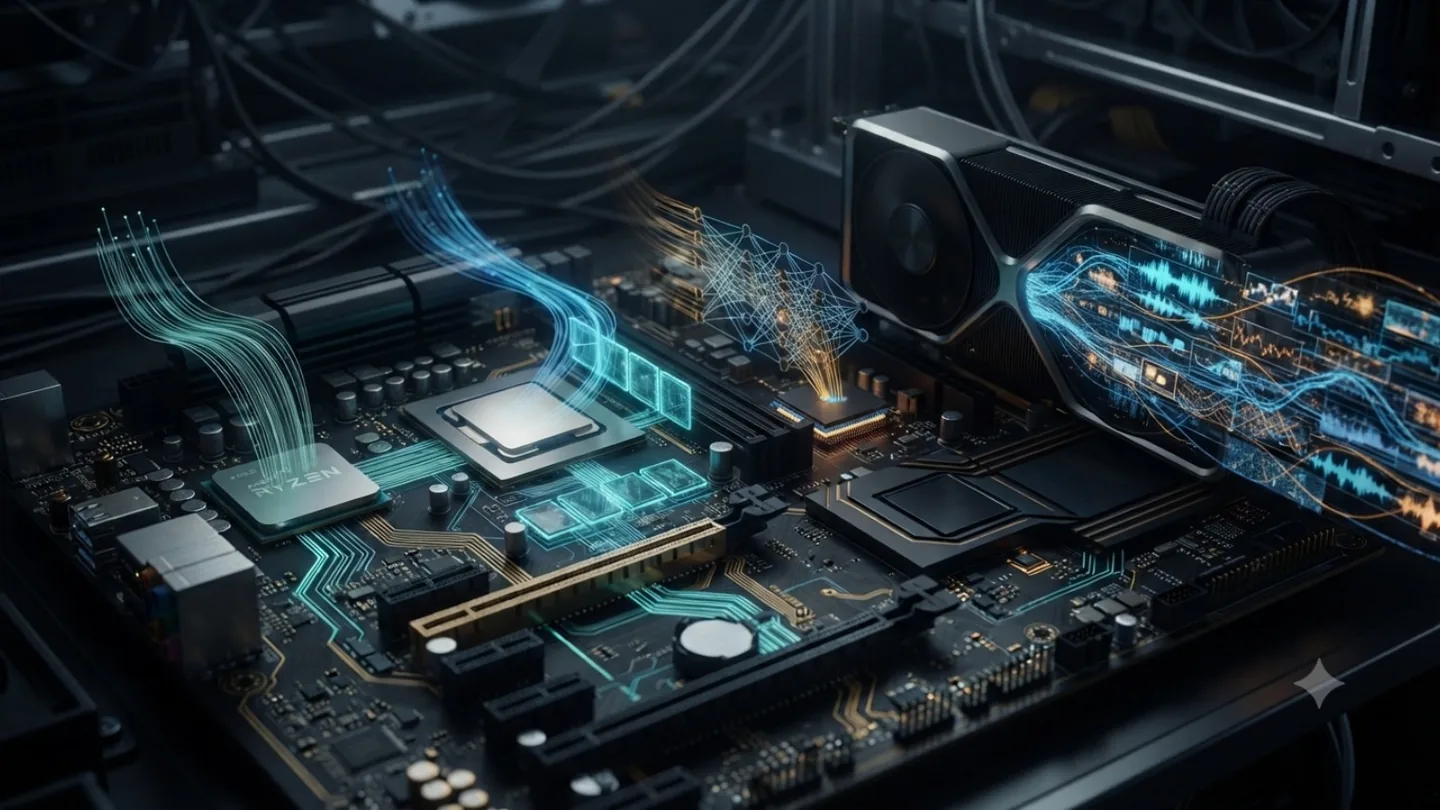
Local video translation, voice cloning and multilingual dubbing benefit from a flexible hardware strategy. Not every stage needs the same compute platform.
An intelligent local workflow can:
- execute lightweight stages on the CPU
- use integrated graphics or an NPU for supported models
- assign demanding TTS and voice-cloning stages to a dedicated GPU
- use hardware-flexible runtimes such as ONNX Runtime
- preserve a functional, although slower, path on weaker systems
This separation is important. Local AI should not depend exclusively on one GPU brand, but hardware compatibility must never be confused with identical performance.
What if your own hardware is not powerful enough?
VANIV follows a local-first approach: files, models and processing should stay on the user’s computer whenever possible. Not every user owns a GPU powerful enough for long video-dubbing projects, high-quality voice cloning or larger local AI models.
A future optional extension could therefore offload selected compute-heavy stages to a short-lived external GPU. The local computer would remain the workflow controller, while the external resource would handle only tasks that the user explicitly permits.
“Without your own GPU” is more accurate than “without a GPU”
The computation would still run on a GPU. The difference is that the GPU would not be installed in the user’s computer.
The technically accurate descriptions are therefore local AI without your own GPU or locally controlled AI with optional external compute.
This distinction prevents misleading expectations. The local device remains the cockpit and control layer, while a remote instance performs a clearly limited processing step.
Privacy starts with an honest data-flow analysis
When a complete audio, video or voice-cloning stage is processed externally, the data needed for that stage must be transmitted. Encryption protects the connection, but it does not make the data invisible to the system that processes it.
A privacy-oriented architecture would therefore need to define:
- which data is allowed to leave the device
- whether local preprocessing or segmentation can reduce the payload
- whether names, metadata or unnecessary media tracks can be removed first
- which geographic region hosts the instance
- whether processing can remain in memory
- whether persistent project storage can be avoided
- how logs, caches and temporary files are handled
- how the instance is terminated and discarded after the job
- which projects must remain local-only
The claim “no personal data is sent over the network” is only accurate if the remote system truly receives no personal source data. That would normally not be true for full remote voice cloning or video processing. A more realistic security model is based on data minimization, encryption, short-lived infrastructure, transparent controls and a strict local-only mode for sensitive projects.
A possible future VANIV model
A secure external-compute option could eventually work like this:
- The user explicitly selects which processing stage may be offloaded.
- VANIV prepares the required data locally and removes unnecessary metadata.
- The data is encrypted in transit to a clearly defined temporary instance.
- Processing avoids permanent project storage wherever technically possible.
- Only the required output is returned.
- The temporary instance is terminated and discarded after completion.
- The user can always switch back to fully local processing.
This is not an announced VANIV product feature. It is one possible future architecture for combining local control with optional additional compute. For the broader trade-off, see cloud AI versus local AI.
Frequently asked questions
Can a local AI workflow use the CPU and GPU at the same time?
Yes. Some runtimes can offload part of a model to the GPU while the remaining layers stay in system RAM and run through the CPU. Whether this works well depends on the model, backend and available memory.
Does every stage of video dubbing need to run on the GPU?
No. Media decoding, timing, audio mixing and parts of export are often CPU-heavy. Generative TTS and voice cloning usually benefit much more from GPU acceleration.
Can I start without a GPU and upgrade later?
Yes. This is often the most sensible approach. Start with smaller or quantized models and identify which tasks work well on your existing system. Add a GPU when model size or waiting time becomes the real bottleneck.
Is more VRAM always better than a faster GPU?
Not automatically. More VRAM allows larger models and more concurrent data. Speed also depends on compute performance, memory bandwidth, backend support and model optimization. Too little VRAM can block a workflow, but extra VRAM alone does not guarantee a faster result.
Is an AI PC without a dedicated GPU suitable for local AI?
It can be well suited to supported NPU tasks, smaller language models, transcription and energy-efficient background functions. Demanding voice cloning and long video-dubbing projects still usually benefit from a dedicated GPU.
Which software is a good starting point?
Ollama and llama.cpp are common starting points for local language models. whisper.cpp is a practical example for local transcription. ONNX Runtime is especially relevant when one model needs to use different hardware backends.
Could VANIV use external GPU compute in the future?
Selected stages could technically use an optional external GPU. That would require transparent control over data flow, encryption, storage behavior, processing region and instance deletion. Sensitive projects would still need a fully local mode.
Can integrated graphics run AI applications?
Yes, when the application has a compatible GPU or accelerator backend. An iGPU does not accelerate a CPU-only program automatically. Shared system memory, memory bandwidth, drivers and model support determine whether it is useful in practice.
Are CPUs enough for running AI workloads without GPUs?
For many smaller or quantized workloads, yes. CPUs can handle transcription, translation, smaller local language models, analysis and lightweight TTS. CPU-only performance depends heavily on model size, quantization and memory bandwidth. Long generative audio, large models and video jobs may still be too slow for regular production without a dedicated GPU.
Conclusion: start with the hardware you have
You do not need a dedicated graphics card to explore local AI. A capable CPU, enough RAM and a fast SSD can handle many transcription, translation, analysis and lightweight TTS tasks.
Integrated graphics can add acceleration. An NPU is useful for efficient supported AI features on modern AI PCs. Both depend heavily on application and runtime support.
For high-quality voice cloning, long-form speech generation, multilingual video dubbing and large generative models, a dedicated GPU remains the most practical option. It often determines not whether the workflow can run at all, but whether it runs quickly enough for regular use.
Fast decision: For occasional transcription, translation and small models, begin with the CPU and RAM you already have. If you regularly process long audio or video, several speakers or large generative models, plan for a dedicated GPU.
A sensible upgrade path is:
- Begin with the hardware you already own.
- Test which models and workflows run reliably.
- Identify whether waiting time, RAM or VRAM is the actual bottleneck.
- Upgrade the component that produces the largest productivity gain.
For transcription, translation and smaller models, a good CPU is often sufficient. Once you regularly process long voice or video projects, use multiple speakers or regenerate output repeatedly, a dedicated GPU becomes the biggest productivity upgrade.
Recommended next steps
Further technical documentation
Hardware support can change with new runtimes, drivers and backend versions. Use the current official documentation when validating a specific setup: