
Models need compute
Voice cloning, local TTS, transcription, translation and video dubbing all benefit from modern GPU performance.
For testing local voice cloning and TTS, an RTX 5070 is a sensible entry point. For regular creator work, video dubbing and more iterations, the RTX 5070 Ti or RTX 5080 are the more comfortable choices. The RTX 5090 is only necessary if you want maximum headroom and the budget is secondary.
Start with your workflow: short voiceovers need less power than multi-speaker video dubbing. If you are unsure, test the workflow first and upgrade only when your own projects actually hit hardware limits.
Local AI sounds great until your PC turns every longer export into a waiting game. The GPU does not decide everything, but it often decides whether voice cloning, TTS and video dubbing feel usable in your daily creator workflow.
This guide helps you understand which GPU class makes sense for VANIV, local voice AI and video dubbing — and whether you should test first or upgrade immediately.
Note: The hardware page includes GPU recommendations and clearly marked affiliate links. This does not increase your price.
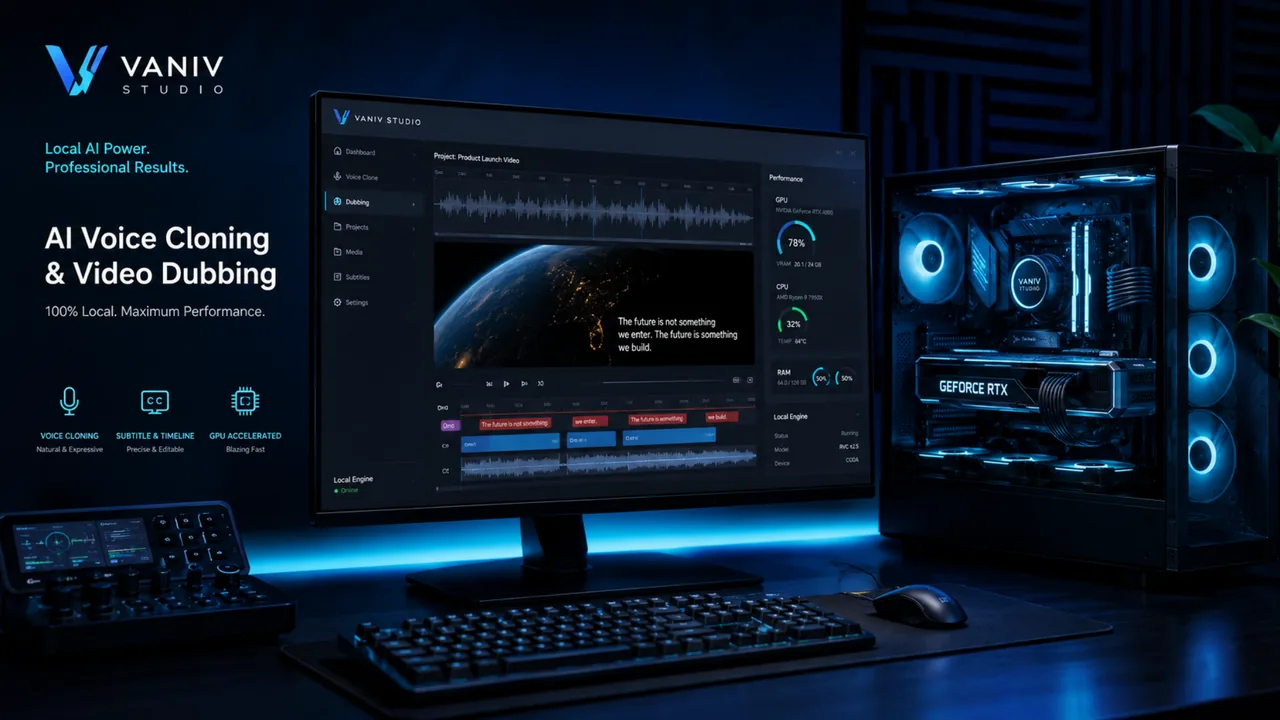
The best GPU is the one that fits the voice model you actually run. Smaller or optimized TTS and cloning models can work with modest VRAM, while larger models, higher-quality settings, concurrent jobs and video pipelines benefit from more headroom. VRAM is usually the first specification to compare.
| VRAM | Voice/TTS use | Planning note |
|---|---|---|
| 8 GB | Many lighter or optimized local voice models | Good entry point when the model explicitly fits; leave headroom for the runtime. |
| 12 GB | Broader voice-cloning/TTS compatibility and smoother multitasking | Useful when voice generation shares the GPU with other creator tools. |
| 16 GB+ | Larger models, concurrent workloads and heavier dubbing pipelines | Best when voice generation is part of a multi-stage local workflow. |
Actual memory use depends on model architecture, precision, quantization, batch size and runtime. Check the requirements of the model you plan to use before buying hardware.
A compatible GPU can make local voice AI substantially more practical. This guide focuses on RTX options, but VANIV is ONNX-based and also supports compatible AMD and Intel hardware. Short TTS and voice-cloning tests are less demanding than longer, multi-speaker video dubbing workflows.
The best GPU is therefore not always the most expensive card. The real question is whether you occasionally test, regularly create voiceovers, or dub videos as a repeatable local production workflow.
Cloud tools hide compute power in the background. In local workflows, your own PC has to do that work. That is why hardware suddenly becomes visible.
Voice cloning, local TTS, transcription, translation and video dubbing all benefit from modern GPU performance.
If every short test takes too long, you test less. A suitable GPU makes iteration easier.
A short voiceover test is not the same as a longer dubbing project with multiple speakers and export.
More headroom does not automatically improve quality, but it often reduces frustration in longer projects.
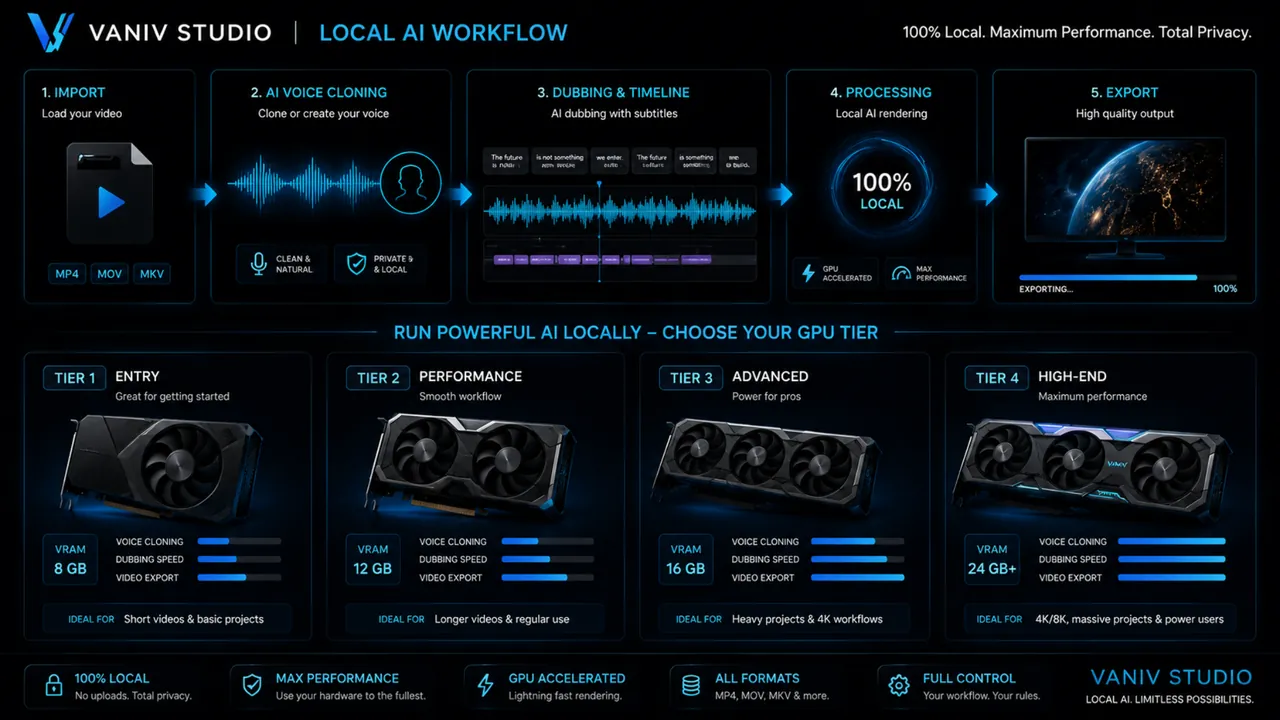
Many people buy graphics cards based on gaming benchmarks. For local voice cloning, TTS and video dubbing, the more important question is how much usable headroom your system has in a real creator workflow.
8 GB VRAM can be enough for simple TTS tests, short voiceovers and first experiments. But for longer local workflows, this class can feel tight quickly, especially when video, several tools or larger projects enter the picture.
For VANIV, that means: good for trying things out, but not ideal as a long-term production comfort zone.
12 GB VRAM is a much more comfortable starting point for many local voice AI workflows. Short voice cloning tests, local TTS projects and simpler dubbing workflows usually feel less constrained here.
If you plan to work with VANIV regularly, this is often the lower end of what feels practical.
16 GB VRAM gives you more room for longer projects, repeated tests and more ambitious creator workflows. It does not automatically create better voices, but it often means less waiting, fewer limits and more confidence while iterating.
For recurring local production, this class is noticeably more attractive than a minimal setup.
24 GB or more becomes interesting when local AI is no longer a toy, but part of your production stack: longer videos, many variations, several speakers, larger files or client work.
Not everyone needs that. But if you render locally a lot, headroom can become more valuable than chasing the cheapest possible setup.
These VRAM tiers are planning guidance, not universal minimum requirements. Some models and execution providers need less memory; others can exceed these ranges. Performance also changes with input length, settings and the rest of the system.
More VRAM does not automatically mean better voice quality. Quality also depends on the recording, model, settings, script, timing and workflow. But more headroom can decide whether you iterate comfortably or constantly feel like your system is at the edge.
That is why this guide links to the VANIV hardware pages: not as pushy buying advice, but as a practical next step when you want to match a GPU class to a real local creator workflow.
The table below is intentionally practical. It is not about benchmark trophies. It is about matching the GPU class to your local creator workflow.
| GPU class | Good fit for | Useful for VANIV when | Next step |
|---|---|---|---|
| EntryRTX 5070short clips and first local tests | TTS, voiceover, first voice cloning tests and smaller projects. | You want to try VANIV and do not plan regular production yet. | See 5070 recommendation → |
| Mid-range+RTX 5070 Timore headroom without luxury pricing | Longer clips, more frequent tests and ambitious creator workflows. | You work with voice AI regularly and do not want to hit limits too quickly. | See 5070 Ti recommendation → |
| Creator pickRTX 5080strong for repeatable production | Regular voice and dubbing projects with more iterations. | Local AI is becoming a real part of your creator workflow. | See 5080 recommendation → |
| High-endRTX 5090maximum headroom | Demanding local workflows, long projects and maximum reserve. | Price/performance is secondary and you consciously want high-end hardware. | See 5090 recommendation → |
The linked hardware page contains specific GPU recommendations and transparent affiliate-link notices.
The GPU class is only part of the decision. Real performance also depends on the model, settings, video length, number of speakers, RAM, SSD, cooling and the complete workflow. Do not buy for prestige. Buy for your actual use case.
Once you understand the GPU classes, the next step is not to panic-buy hardware. Compare the components that actually fit your workflow.
Concrete GPU recommendations for local AI, voice cloning, TTS and video dubbing workflows with VANIV.
The central hardware hub for local AI: GPU, RAM, SSD and system basics for creator workflows.
Why memory matters next to the GPU, especially when you combine video, audio, browser tabs, editing tools and local AI.
When local hardware can make more sense than monthly subscriptions, credits and stacked creator tools.
Note: Some hardware pages contain affiliate links. If you buy through them, VANIV may receive a commission. Your price does not change.
For local AI, many creators look at used high-end GPUs because VRAM can be attractive. That can be smart, but a used card is not automatically a good deal.
An RTX 3090 can be interesting for local AI because of its 24 GB VRAM. The risk is age, power consumption, cooling, previous usage, possible mining history and warranty.
If the price is strong and you can test the card properly, it can be worth considering. I would not buy one blindly.
An RTX 4090 is very strong for local AI, but used prices are often still high. Check condition, invoice, warranty, power supply requirements and physical space in your case.
For VANIV, it can provide a lot of headroom, but it only makes sense if you actually use local workflows often.
Newer cards are often easier from a warranty, efficiency and daily-use perspective. For many creators, a modern mid-range or upper-mid-range GPU is more reasonable than a risky used high-end card.
If you are just starting with VANIV, this class can be a cleaner entry point.
These cards are for creators who treat local AI as real production: many projects, longer videos, repeated variations and very little patience for waiting.
For occasional tests, this is overkill. For ambitious local workflows, the headroom can be useful.
Do not buy by model number alone. Buy for the workflow. If you only want to test a few voices, start smaller or test VANIV first. If you regularly work with videos, dubbing, voice cloning and exports, GPU headroom becomes real productivity.
Also remember: a powerful used GPU does not help much if the rest of the system cannot support it. Power supply, cooling, RAM, SSD and case airflow all matter.
Before buying a new GPU, check whether your current system is good enough for your first tests. This can save money and prevent unnecessary upgrades.
You do not have to guess before buying a new GPU. Test VANIV on your current system first, then decide whether an upgrade is really necessary.
Join Early AccessA powerful GPU cannot compensate for every weak point elsewhere in the system. Sustained local work depends on balanced memory, storage, cooling and power.
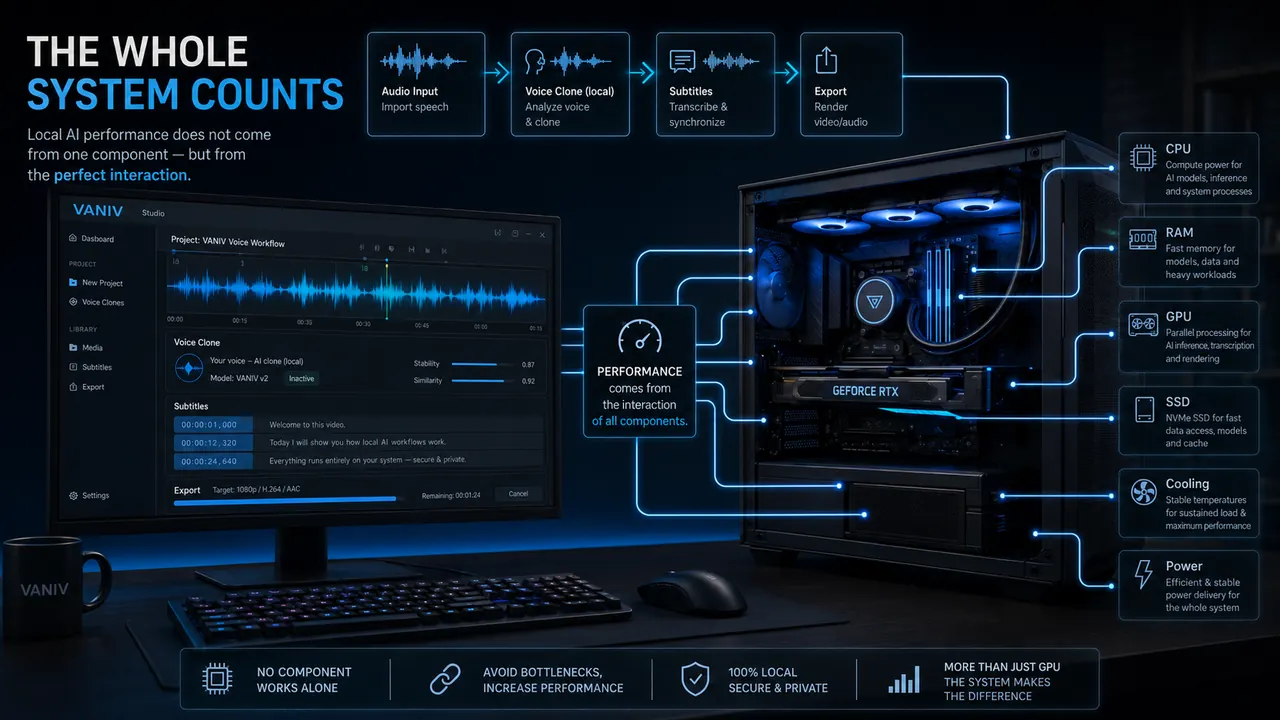
Many people underestimate the difference between a short voiceover and a longer video project. Once several processing steps come together, the workload increases.
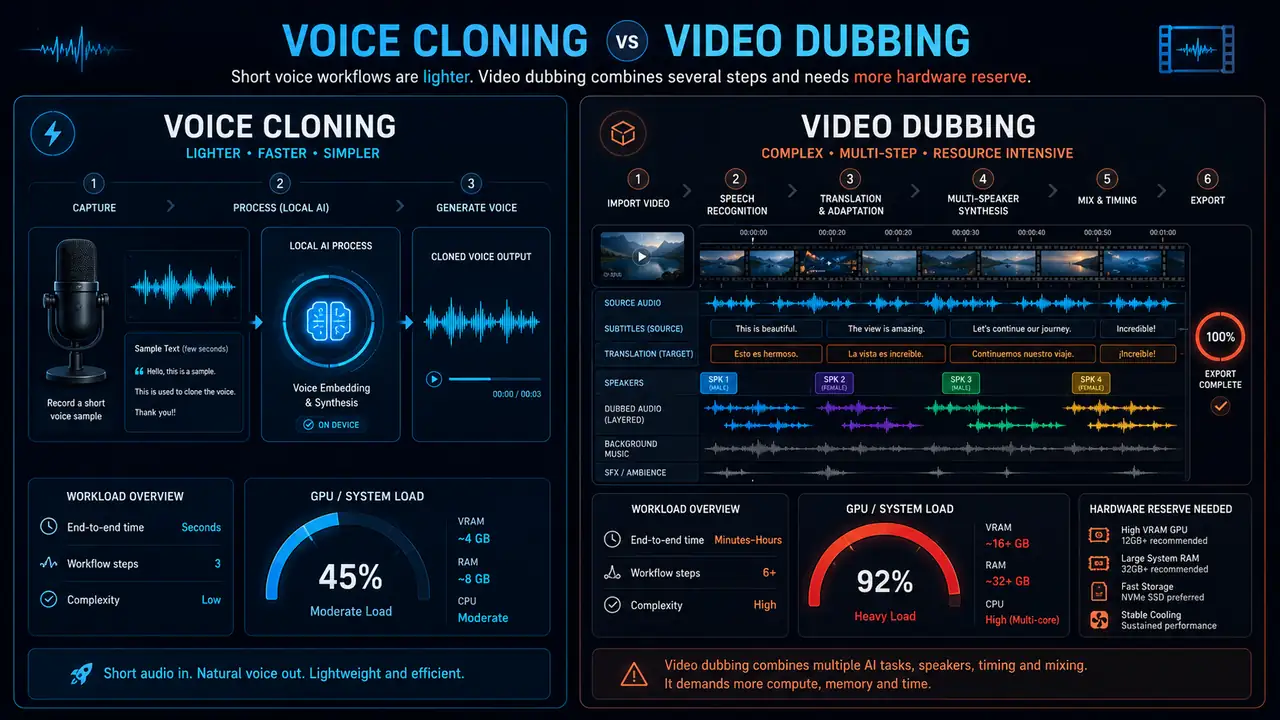
For short voiceovers, tests and single-speaker work, a smaller GPU class is often enough. The key is being able to test quickly.
Voice cloning is more demanding, but not every project requires high-end hardware. Good recording quality and clean preparation remain critical.
Multiple speakers, translation, timing, audio mix and export increase the requirements. This is where extra headroom pays off.
If you want to translate full videos, also read the workflow for AI video translation.
The GPU is not just about one render. It affects how smooth your daily local workflow feels: testing voices, generating audio, checking subtitles, dubbing clips and exporting results.
With TTS, you often need variations: a different sentence, different pacing, a stronger call-to-action or a cleaner ending. When short tests are fast enough, you naturally iterate more and get better results.
Related guide: Local text-to-speech with VANIV.
Voice cloning depends on clean source material, short tests and comparison versions. A suitable GPU makes that loop more comfortable, but it does not replace a good recording.
Read next: How to clone your own voice.
Dubbing combines several steps: transcription, translation, voice generation, timing, subtitles, mix and export. That is why video dubbing is much more demanding than a single voiceover.
Workflow guide: Local AI video translation.
If you want to publish in several languages, you need repeatable processes. A stronger GPU does not just save time; it makes testing more versions feel less painful.
See also: Scale a YouTube channel in 5 languages.
A GPU is not a status symbol. It is a production tool. The best purchase is not the most expensive card, but the card that makes your VANIV workflow smooth enough: test voices, generate audio, check dubbing, review subtitles and export without constant friction.
Before spending hundreds or thousands on a new graphics card, test your real workflow. Not a synthetic benchmark. Your own kind of project.
Use a real paragraph from your content and generate several versions. If short tests already feel painfully slow, longer projects will frustrate you quickly.
Do not use a perfect demo file. Use a realistic voice recording. That gives you a much better sense of whether your system is good enough for your actual workflow.
Use a small video with voice, timing, subtitles and export. This is where GPU, RAM and SSD have to work together.
If waiting times slow down your creative process, compare the GPU recommendations for local AI and upgrade with a clearer goal.
A spec sheet does not tell you whether your workflow feels good. VANIV is also a practical hardware test: you quickly see whether your current PC is enough for short voiceovers or whether video dubbing, several languages and regular exports need more headroom.
Before buying new hardware, it is worth checking your setup, files and workflow. Some bottlenecks can be reduced without a new graphics card.
Start with short sections that contain real problem areas: names, technical terms, fast passages and calls-to-action. That prevents long exports that need to be repeated because of small issues.
Audio, video, subtitles and temporary files should not sit on slow or nearly full drives. A fast SSD will not magically improve a voice, but it reduces unnecessary friction.
Local AI rarely runs alone. Browsers, video editors, monitoring tools, file managers and background apps also use resources. Plan for the real day-to-day workflow, not just one model.
A powerful GPU is not useful if it constantly runs hot or the power supply is too close to the limit. Stability matters more than pretty benchmark numbers.
The best benchmark is your real use case: a typical script, a real voice recording, a short dubbing test and a final export. That is why it makes sense to test VANIV on your current PC first and then decide whether an upgrade is necessary.
The best decision depends on how often you actually use local voice AI. Here is a practical orientation without unnecessary hardware hype.
Do not start with the most expensive card. Start with your real use case. Someone who occasionally tests voiceovers needs different hardware than someone who dubs videos locally every week. If you want to use VANIV as a serious production tool, plan some headroom.
You can find specific GPU recommendations on the VANIV hardware page. Before buying, always check price, availability, case size, power supply and warranty conditions.
A suitable hardware base helps you test more often, find mistakes faster and avoid turning local AI into a patience test.

If you want to test local voice AI seriously, these articles are the best next steps.
Why video dubbing needs more headroom than a short voiceover test.
Read guide →Recording, quality and preparation for better voice results.
Read guide →Compare cloud workflows and local tools honestly.
Read comparison →Specific RTX cards and setup guidance.
See hardware →Want to know whether your PC is enough for local voice and dubbing workflows? Request a non-binding Early Access and test VANIV with your own material before deciding on a GPU upgrade.